
SunLicense CLI
sunlicense puts your organization in your terminal. Run it on its own for a full-screen app where every task is one key away, or use its commands in scripts and CI.
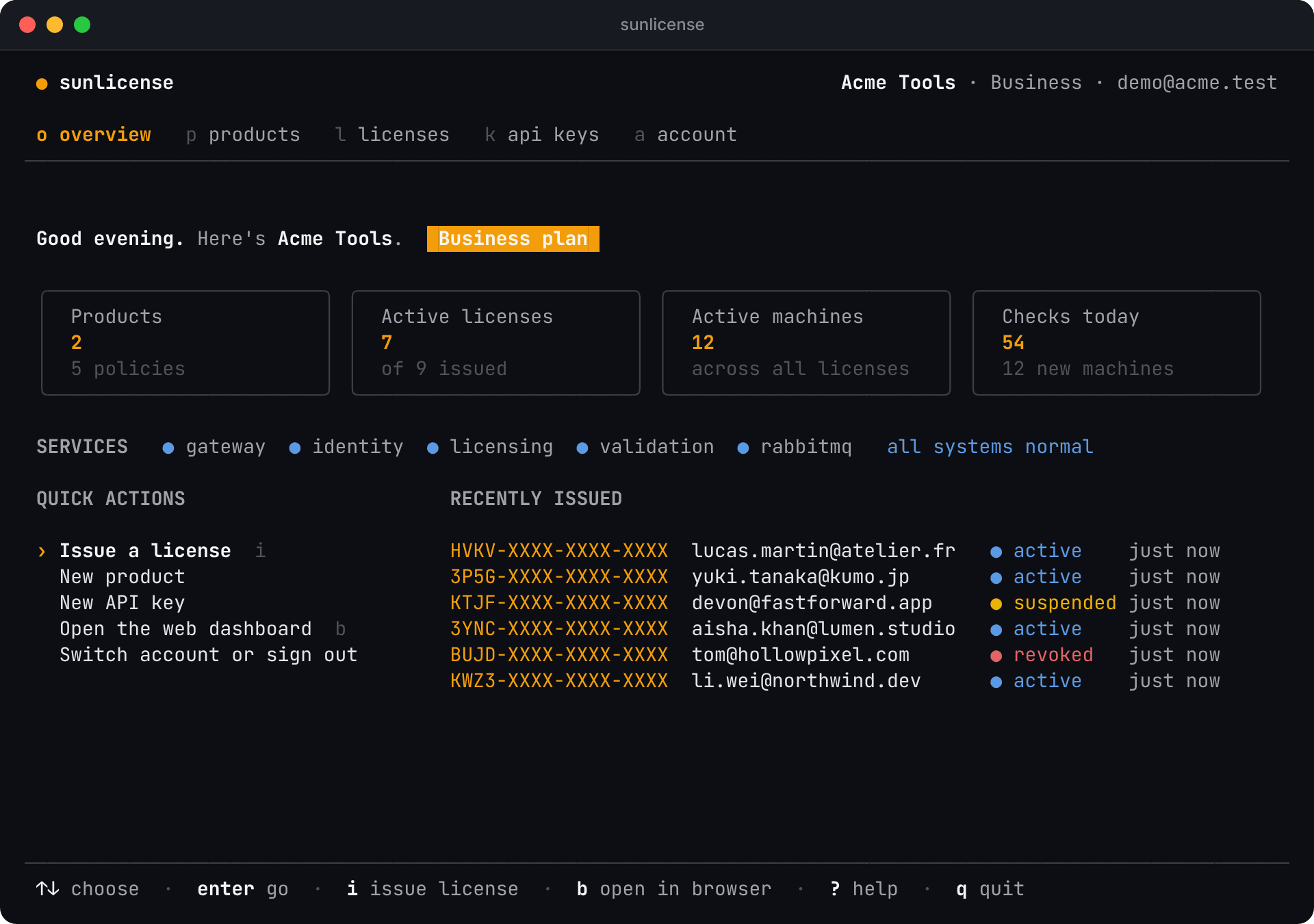
- Sign in once with your SunLicense account, and stay signed in to several organizations.
- Issue, revoke, suspend and inspect licenses, create policies and API keys, without opening the dashboard.
- Script it: every action is also a command with
--jsonoutput and--yesfor no prompts.
Install
macOS and Linux
curl -fsSL https://sunlicense.com/install.sh | sh
The script picks the build for your system (Intel or ARM), checks it against checksums.txt, and installs it to /usr/local/bin, or to ~/.local/bin when that folder isn't writable. It never uses sudo. Run the same command again to update.
| Variable | Default | |
|---|---|---|
SUNLICENSE_INSTALL_DIR | /usr/local/bin | Where to put sunlicense |
Windows
Download sunlicense_windows_amd64.exe (on an ARM PC, sunlicense_windows_arm64.exe), rename it to sunlicense.exe, and move it to a folder on your PATH, for example:
mkdir $HOME\bin -Force
Move-Item .\sunlicense_windows_amd64.exe $HOME\bin\sunlicense.exe
[Environment]::SetEnvironmentVariable("Path", "$env:Path;$HOME\bin", "User")   # then open a new terminal
Use Windows Terminal (or any terminal with 24-bit colour) for the full-screen app.
All downloads
Every build is a single file with no dependencies. Current version: VERSION.
| Intel / AMD (x86-64) | ARM | |
|---|---|---|
| macOS | sunlicense_darwin_amd64 | sunlicense_darwin_arm64 (Apple silicon) |
| Linux | sunlicense_linux_amd64 | sunlicense_linux_arm64 |
| Windows | sunlicense_windows_amd64.exe | sunlicense_windows_arm64.exe |
Check a download against checksums.txt:
curl -fsSL https://sunlicense.com/download/checksums.txt | grep darwin_arm64
shasum -a 256 sunlicense_darwin_arm64        # Linux: sha256sum
On macOS, a file downloaded with a browser is quarantined. Clear that once before running it:
chmod +x sunlicense_darwin_arm64
xattr -d com.apple.quarantine sunlicense_darwin_arm64
sudo mv sunlicense_darwin_arm64 /usr/local/bin/sunlicense
Uninstall: delete the file (rm "$(command -v sunlicense)") and, to forget your sessions, the config file shown in Where sessions are stored.
Sign in
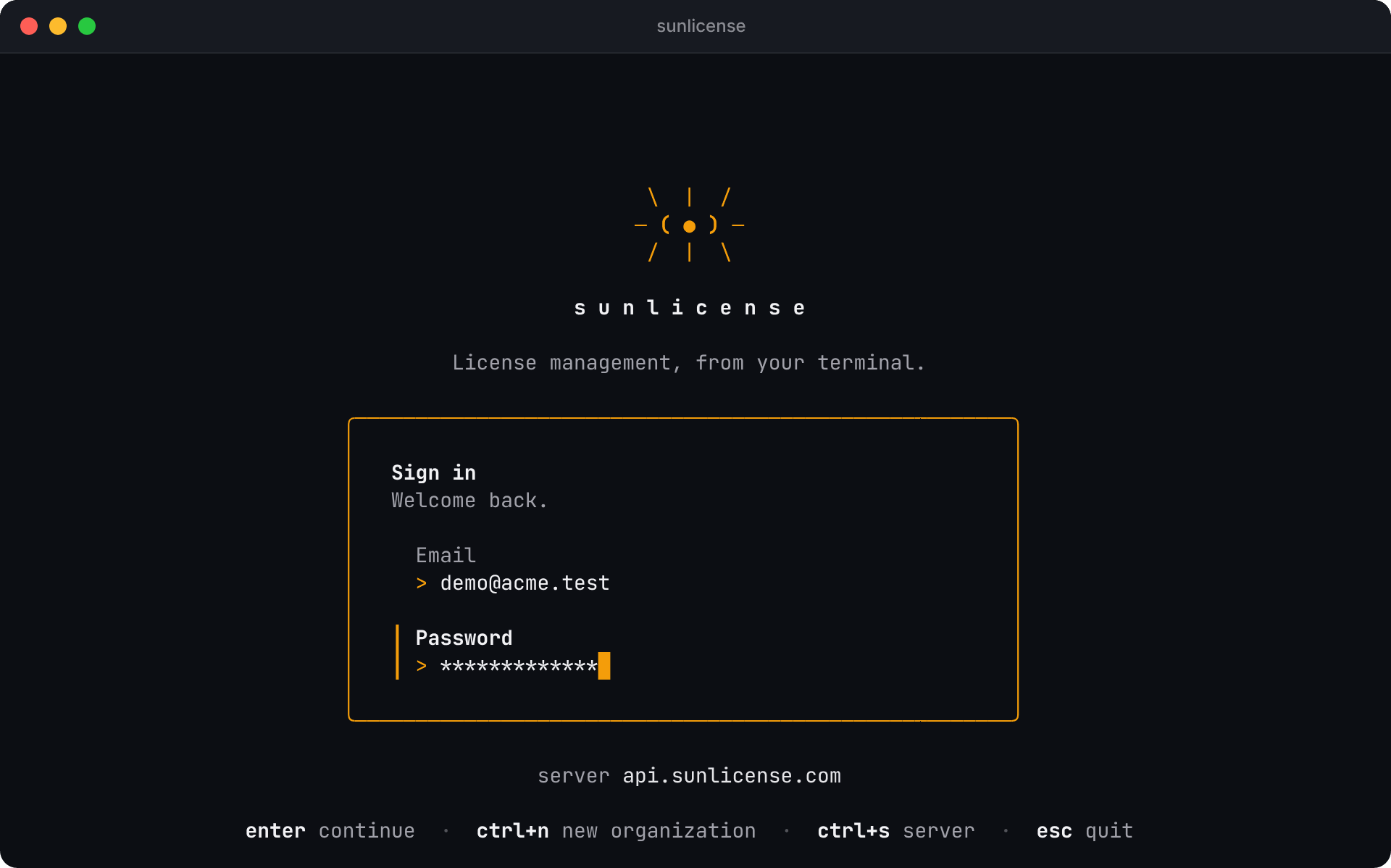
Use the same email and password as the dashboard.
sunlicense loginOr run sunlicense and sign in on the first screen. Press ctrl+n there to create a new organization instead (you become its Owner), and ctrl+s to point the CLI at another server.
sunlicense whoami shows who you are, your role and plan, and how long the session lasts:
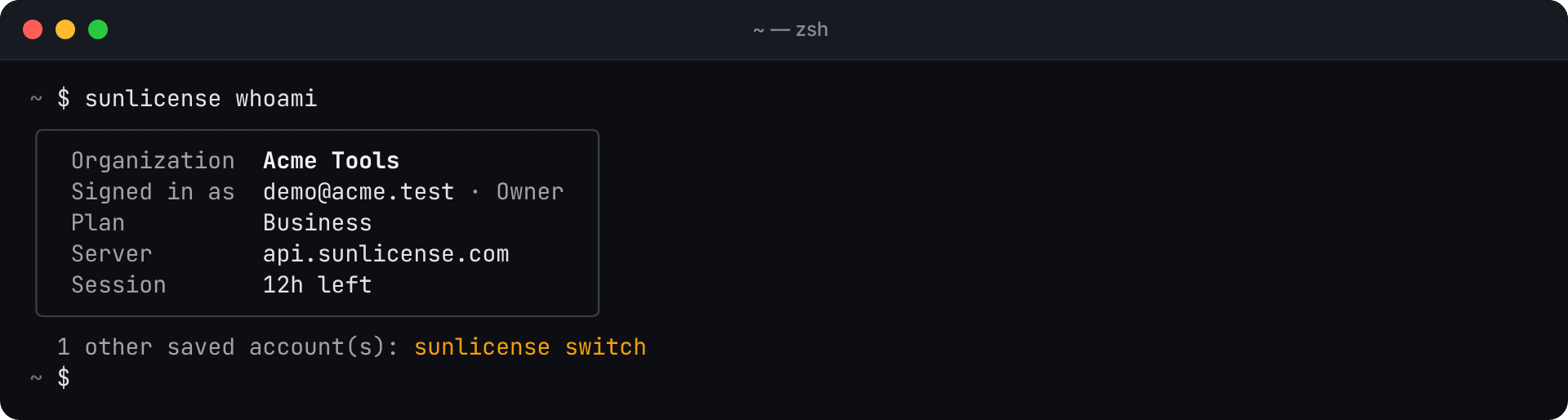
A session lasts 12 hours, like the dashboard. When it ends, the app asks for your password again with your email filled in; a command says so and exits with sunlicense login as the fix.
Several organizations
Sign in again with another account and both stay saved. Switch with sunlicense switch (or a then enter in the app), or run one command as another account with --account:
sunlicense switch                         # pick from a list
sunlicense switch "Bolt Labs"             # by organization or email
sunlicense licenses --account [email protected]
The same email can be saved for production and a local stack (sunlicense login --local signs in to http://localhost); each account remembers its server.
Sign out
sunlicense logout                 # the current account
sunlicense logout [email protected]   # another saved account
sunlicense logout --all           # every account on this computer
Signing out forgets the session on this computer. A session that was copied elsewhere stays valid until it expires (at most 12 hours).
Where sessions are stored
| System | File |
|---|---|
| macOS | ~/Library/Application Support/sunlicense/config.json |
| Linux | ~/.config/sunlicense/config.json |
| Windows | %AppData%\sunlicense\config.json |
The file is readable only by you (mode 0600). Set SUNLICENSE_CONFIG to use another file.
Next
- The app: every screen and key.
- Commands and scripting: one-shot commands,
--json, CI, and testing an integration.