
Discord
Run licensing where your community already is. Connect your Discord server to SunLicense and:
- manage licenses from Discord with
/license(autocomplete, buttons, your dashboard permissions), - get staff notifications, including a red key-sharing alert with a Suspend button,
- let customers claim their license, get buyer roles that follow the license, see their machines and free a slot themselves,
- run key drops: N fresh licenses, one per member, with a live progress bar,
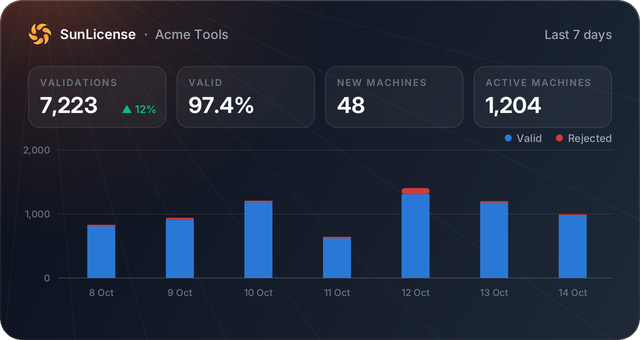
- see charts in chat with
/statsand a daily digest.
Connect your server
You need the org.manage permission in SunLicense (Owners and Admins have it) and Manage Server in Discord.
- In the dashboard, open Discord and click Add to Discord. Pick your server.
- Click Create setup code and paste the command into any channel of that server:The code works once, for 15 minutes. Notifications start in the channel where you ran it.
/sunlicense setup code:ABCD-EFGH
Running setup also links your own Discord account to your SunLicense account.
Link your Discord account (staff)
Each staff member links their own account: dashboard → Discord → Create link code, then in Discord (in the server, or in a DM with the bot):
/sunlicense link code:WXYZ-2345Your Discord account now acts as you. A Viewer can look up licenses but not revoke them, exactly as in the dashboard; if an admin disables your account or changes your role, Discord follows within 30 seconds. /sunlicense unlink (or Unlink in the dashboard) undoes it.
Staff commands are visible to members with Manage Server by default. To open them to your support team, go to Server Settings → Integrations → SunLicense and allow their role. To use them anywhere, even in DMs, add the app to your Discord account with the link on the dashboard page.
Staff commands
| Command | What it does |
|---|---|
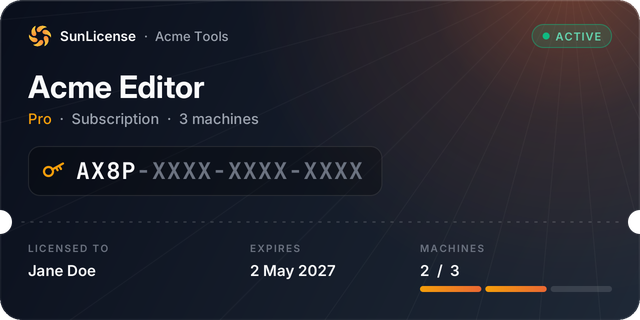
/license view license: | License card with status, expiry, machine usage and buttons: Reveal key, Machines, Suspend/Reinstate, Revoke |
/license issue [policy:] [deliver_to:@member] | A form for the policy, email and name. With deliver_to, the member gets the license by DM (key behind a spoiler), it's claimed for them and their buyer roles are given |
/license revoke license: | Asks for confirmation; revocation is permanent |
/license machines license: | Active machines with hostnames and last-seen times; pick one to free its slot |
/stats [range:] | Validation chart (24 h, 7 or 30 days) with headline numbers |
| Apps → Licenses (right-click a member) | The licenses that member claimed |
/sunlicense notifications | Pick the channel and events, then Send a test |
/sunlicense roles product: [role:] | Give members a role for each product they own (or Any product for a verified-buyer role). Leave role empty to stop |
/sunlicense panel | Post the claim panel for customers in the current channel |
/drop policy: count: [title:] | Start a key drop |
/sunlicense status | What's connected and who you are |
The license: option searches as you type: a key, its first group (AX8P), or the customer's email.
Everything staff see is private to them (ephemeral). Keys are always masked (AX8P-XXXX-XXXX-XXXX) until you press Reveal key, which answers only to you.
Notifications
| Event | On by default |
|---|---|
| License issued, suspended, reinstated, revoked | yes |
| Possible key sharing: a license refused because all its machines are in use | yes |
| New machine activated | no (busy servers get many) |
| Plan changed | yes |
| Daily digest at 09:00 UTC: chart of the last 7 days and headline numbers | yes |
Key-sharing alerts show the masked key, the slots bar, where the attempt came from (city and country) and the hostname, with View license and Suspend license buttons (your SunLicense permissions apply). There is at most one alert per license every 15 minutes.
Notifications show customer names and masked emails (ja•••@example.com), never full emails or keys: a staff channel is often wider than the people who should see buyers' details.
You can also pick the channel and events, or turn off self-service resets, in the dashboard.
For your customers
Post the claim panel once (/sunlicense panel), or tell customers about the commands:
| Command | What it does |
|---|---|
Claim a license / /claim | A form asking for the license key and the purchase email. Both must match, so a leaked key alone can't be claimed. A license can be claimed by one Discord account |
My licenses / /my-licenses | Their licenses with status, expiry and machine usage; Reveal key (private) and Reset a machine |
Buyer roles follow the license: given on claim, removed when the license is revoked, suspended or expires, given back on reinstate. Drag the SunLicense role above the buyer roles in Server Settings → Roles, or Discord won't let the bot assign them.
Self-service machine reset lets a customer free one machine slot a day. Their app activates the new machine on its next check. Turn it off per server in the dashboard if your support team handles resets.
Key drops
/drop policy:"Acme Editor · Pro" count:10 title:"Launch week giveaway"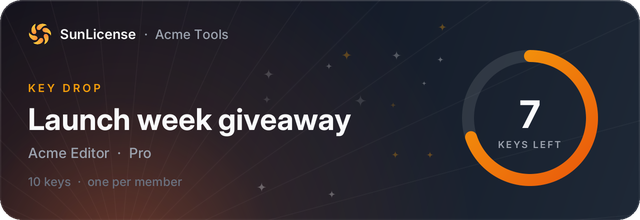
Each member presses Claim a key, enters their email, and gets a fresh license privately (also saved under /my-licenses). One per member; the banner and progress bar update as keys go, and the button turns off when the last one is claimed. Every key is a real license and counts toward your plan's license limit.
How it looks
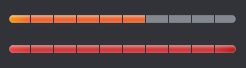
SunLicense ships its own emoji set: status dots, icons, and a progress bar that turns red when a license uses all its machines.

Charts are rendered as images:
Self-hosting
The integration is off until the Discord application is configured. In the Discord Developer Portal:
- Create an application. Copy Application ID and Public Key (General Information) and a bot token (Bot → Reset Token). No privileged intents are needed.
- Put them in
deploy/.envasDISCORD_APPLICATION_ID,DISCORD_PUBLIC_KEY,DISCORD_BOT_TOKENand restartdiscord-service. It registers the commands and uploads its emojis on startup. - Set Interactions Endpoint URL to
https://api.<your domain>/api/v1/discord/interactions. Discord checks it with a signed request, so do step 2 first. - Under Installation, enable Guild Install (scopes
bot,applications.commands) and User Install (applications.commands).
If a Cloudflare WAF or Bot Fight Mode sits in front of your API, allow /api/v1/discord/interactions.