
Automations
Automations (in the dashboard's sidebar) are your own rules, built on a canvas without code: when something happens, if your conditions hold, do something. Suspend a license that's shared around, issue one when a sale comes in, add a note when a license is revoked. You can test an automation before switching it on and see every run step by step afterwards.
Automations are part of the Lite and Standard plans. Each plan includes a number of runs a month (see Plans and billing); test runs don't count.
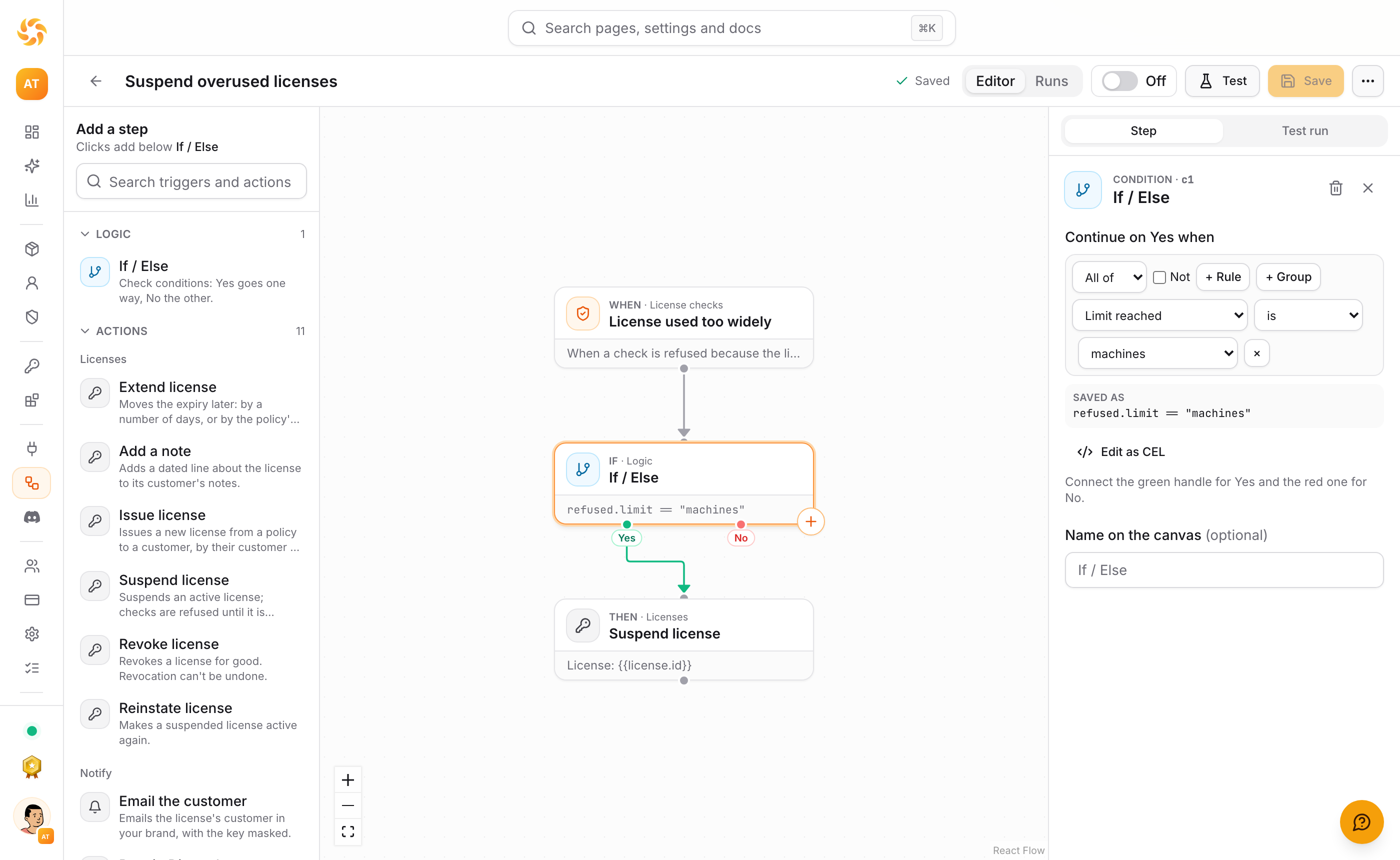
How an automation works
An automation is a small tree read from top to bottom:
- One trigger at the top: what starts it, such as License suspended, Machine activated or License used too widely. The trigger brings data with it: the license, its customer, the machine, the country.
- If / Else steps check conditions on that data. Yes carries on one way, No the other.
- Actions do something: suspend, reinstate, revoke, extend or issue a license, or add a note to its customer. An action can be followed by more actions.
Automations never slow down a license check. They run a moment (usually under a second) after the event that triggered them, so a check that triggers one has already been answered.
Build one
- Open Automations → New automation. Give it a name and start from a blank canvas or one of the templates (with no automations yet, a template card creates one in one click).
- Pick the trigger from the step list on the left: search it or browse by group, then drag it onto the canvas or click it. On smaller screens the list opens with Add a step.
- Add steps: select a step and click the + on its corner (or just click an If / Else or an action in the list); the new step is added below the selected one and connected. Press Enter in the search to add the first match. You can also drag from a step's bottom handle to another step to connect them. An If / Else has two handles: the green one is Yes, the red one No.
- Set each step up in the panel on the right. Actions fill in sensible values: Suspend license suspends the license that triggered the automation. Text settings can use the trigger's data with Insert field, such as
{{license.customerEmail}}. With no step selected the panel shows the Overview: the description, the trigger and every problem (click one to go to its step). - Save (or press ⌘S / Ctrl+S); the toolbar says whether everything is saved. Problems show on the step they're about, in red, and as a count in the toolbar. You can save a half-built automation; it can only be switched on once it has no problems. Rename it by clicking its name in the toolbar.
- Test it, then switch it On.
Let SunLicense AI build it
Ask AI to build opens SunLicense AI: describe the rule in your own words and it drafts the automation, saves it switched off after you confirm, test-runs it and shows you each step. AI assistants connected over MCP can do the same with the build_automation prompt.
Select a step and press Delete (or use its bin icon) to remove it; select a connection and click its × to remove that. Scroll to move around the canvas; pinch or hold ⌘/Ctrl and scroll to zoom. More (⋯) → Tidy up the layout arranges the canvas top to bottom.
Conditions
An If / Else step's rules use the trigger's data: Status is SUSPENDED, Country is one of DE, AT, Expires is within the next 7 days. Combine rules with All of or Any of, group them, and turn a group around with Not. Products and policies are picked by name.
Under the rules you can see the condition as SunLicense stores it, a CEL expression. Edit as CEL lets you write the expression yourself for anything the builder can't say, for example:
license.expiresAt < now + duration("168h") && !license.perpetualEvery field has a type, so a misspelt field or comparing a number with text is shown as a problem when you save, not when the automation runs.
Test before switching on
Test opens the test panel beside the canvas. It runs what's on the canvas, saved or not:
- Sample data: the trigger's example, which you can edit as JSON.
- A past run: the data a real run had (also from a run's page: Test with this data).
- The newest real event (SunLicense AI and MCP assistants): the data of the latest event of the same trigger in your organization, from any automation's runs, so a new automation can be tried on something that really happened.
Conditions are checked for real. Actions only say what they would do ("Would suspend license AX8P-XXXX-…"), so nothing changes. The canvas lights up the path the test took until you change something; the panel keeps your data and the last result, so you can change a step and run it again. Click a step in the result to find it on the canvas.
Run history
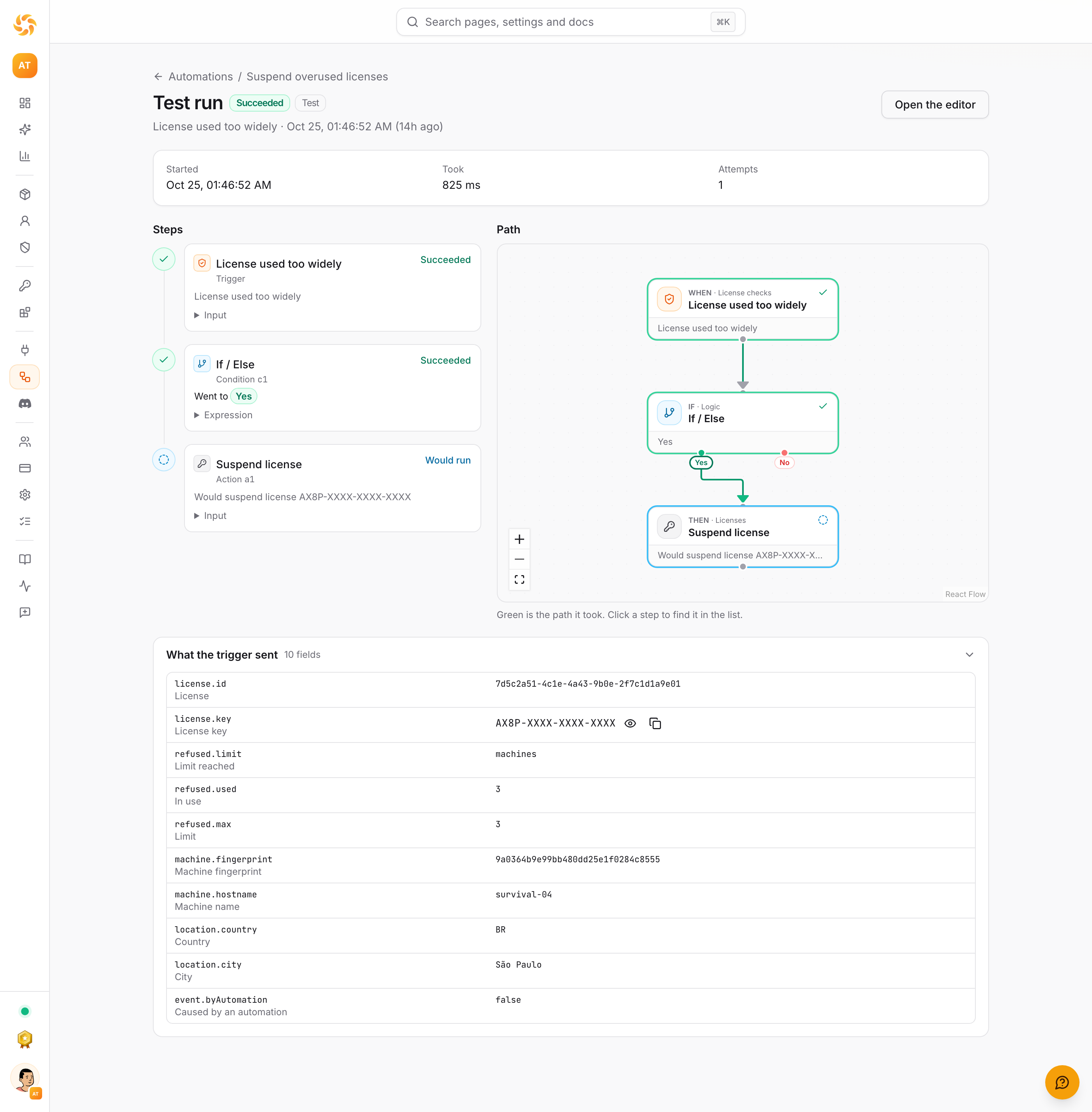
The Runs tab lists every run, newest first, with what triggered it and how it ended (the Automations list shows each one's last run). Open one to see:
- each step in order as a timeline: how each condition went (Yes or No), what each action did and what it sent, how long it took, or why it failed;
- the canvas with the path the run took: green for done, blue for "would" (test runs), red for failed. Click a step on the canvas to find it in the timeline;
- everything the trigger sent. License keys are masked; reveal or copy one with the buttons next to it.
Runs are kept for 30 days. A run can also be Skipped, with the reason: the plan's runs for the month are used up, the plan no longer includes automations, or too many runs started in the same minute. If the service an action calls is briefly unavailable, SunLicense tries again (after 10 seconds, 1 minute and 5 minutes) and carries on from that step.
Examples
Suspend a license used from too many places
When a license is used from a new IP address, if it was used from more than 2 addresses in the last 24 hours, suspend it.
- New automation → Suspend licenses used from too many places (or build it: trigger New IP address for a license).
- The If / Else checks the number of addresses in the last 24 hours is more than 2.
- On Yes: Suspend license (the license that triggered it).
- Test run with the sample, then switch it on.
Change 2 to what fits your buyers. To be gentler, use Add a note first and suspend on a second automation later.
Issue licenses only for some products
A marketplace sale comes in; issue a license only for the products and buyers your conditions allow.
- On the marketplace integration (Integrations → your store), choose Let automations decide instead of Issue licenses automatically (see Integrations).
- New automation → Issue licenses only for some products (trigger: Marketplace purchase).
- In the If / Else, add your rules, for example the product is one of the ones you sell with SunLicense.
- On Yes: Issue license from purchase. Leave No empty, or add a note.
Act on product analytics
Product analytics brings three triggers (group Product analytics):
| Trigger | Starts when | Data |
|---|---|---|
| New product version | An install reports a version of your product for the first time | the product, the version, whether a licensed install reported it first |
| Feature used for the first time | A license uses one of your app's features for the first time (needs feature usage, on Lite and Standard) | the product, the feature, the license and its customer |
| Active installs crossed a number | Once a day (after 00:30 UTC), when the day before's active installs reached your number, or fell below it | that day's installs (all, licensed, unlicensed) and the day before's |
Active installs crossed a number has its own settings: the number, the direction (up or down) and which installs count (all, licensed or unlicensed). It starts on the one day the number is crossed, so 1 000 installs for a month start it once. The Post new versions to Discord template announces every new version in your Discord channel.
Safety
- Loops can't run away. What an automation does never triggers that same automation again, and a chain of automations triggering each other stops after 3 steps.
- Changes say who made them. A license an automation changed shows "by automation (its name)" on its page.
- Permissions. Viewing automations needs
automations.read; building, switching on and testing them needsautomations.write, plus the permissions of the actions used (licenses.writefor license actions). Runs keep working when the member who built it leaves. See Team and roles. - Limits. Up to 100 automations per organization and 50 steps per automation.